Guide
How to Build a NotebookLM Project Brain in 30 Minutes
One notebook, loaded with one project, so anyone can ask a plain-language question and get a cited answer.


A project brain is one NotebookLM notebook, loaded with everything about a single project, so anyone can ask a plain-language question and get an answer with a citation. The free tier (50 sources) is enough for one small project. Setup takes about 30 minutes: pick a tight boundary, load the source stack, set a Goal, then stress-test it before anyone else does.
Every project accumulates a second, invisible project alongside the real one: the brief, three versions of the research, a transcript from the kickoff call, a status report that quietly contradicts the brief, and a Slack thread where the actual decision got made. New team members ask questions that have already been answered somewhere in that pile. So do veterans, six weeks later, because nobody can remember which document has the current numbers.
A “project brain” is a fix for that, not a new tool to learn from scratch. It’s one NotebookLM notebook, loaded with everything about a single project, so anyone on the team can ask a plain-language question and get an answer that cites a source they can open. No prompt engineering, no separate wiki to maintain. Still check the passage — a citation is only as good as the document you uploaded.
This is a working setup, not a demo. Here’s how to build one in about 30 minutes, what to load, which questions actually work, and — just as important — where it stops being useful and you need something else.
What NotebookLM actually is in mid-2026
NotebookLM is Google’s research tool. Chat in a notebook is built to answer from the sources you loaded, with a citation you can open. That is not a guarantee: stale or conflicting documents produce stale or conflicting answers, and you still check the passage. Deep Research and Discover can add web sources — those are new sources, not a reason to skip the check. If the answer isn’t in the notebook, a working brain says so — then you verify it did.
The practical numbers, as of mid-2026. These are the figures from this draft; our AI tool and model pricing guide is re-checked monthly and may show slightly different peso conversions — don’t treat either as a live invoice.
| Plan | What you get | Price (snapshot) |
|---|---|---|
| Free | 50 sources per notebook, 100 notebooks, 50 questions a day | Free |
| Plus | 100 sources per notebook, 200 notebooks | Google AI Plus — PH list ₱285 (web US$4.99); see the pricing guide |
| Pro | 300 sources per notebook, 500 notebooks, more Deep Research runs | Google AI Pro — PH list ₱1,100; see the pricing guide |
| Ultra | 500–600 sources per notebook, plus Cinematic Video Overviews | Google AI Ultra — PH list from ₱5,999 / ₱11,900 (US$99.99 / US$199.99); see the pricing guide |
Business and enterprise: NotebookLM Plus comes with Google Workspace Business Standard and up; NotebookLM Enterprise is available separately through Google Cloud.
Since Google’s May 2026 restructure, none of this is sold as a standalone NotebookLM subscription any more — it rides on whichever Google AI or Workspace plan you’re already on. Every tier caps an individual source at 500,000 words or 200MB, which is generous enough that it’s rarely the limiting factor. Beyond retrieval, the Studio panel can turn your sources into Audio Overviews, Video Overviews, Mind Maps and written reports, and the chat itself now runs on a full 1-million-token context window with history that’s saved across sessions. Full detail lives on LOKAL’s AI tools directory, where NotebookLM is reviewed alongside every other tool we’d actually put in front of a client.
Step 0: pick the project boundary before you touch it
The single biggest mistake is loading one notebook with “everything about the agency” instead of one project. NotebookLM synthesises across whatever is in the notebook, so a notebook that mixes three clients’ contracts will happily blend details that should never touch. Scope tight: one client project, one campaign, or one SOP domain per notebook. If you’re not sure whether something belongs, start a second notebook rather than stretching the first one.
If you’re not sure whether something belongs, start a second notebook rather than stretching the first one.
Minutes 0–10: load the source stack
Open a new notebook and work through this checklist. You won’t need all of it for every project, but this is the order that matters most:
- Project brief or statement of work
- Research decks, competitor notes, and background reading
- Meeting transcripts (Granola, Zoom, or Otter exports)
- Prior reports and delivered work
- Contracts, SLAs, or scope documents
- Brand guidelines or style guide
- Key email threads (export to PDF or paste as text)
- Important Slack or Basecamp decisions (paste the relevant messages as text)
NotebookLM takes PDFs, Google Docs/Slides/Sheets, Word files, TXT, Markdown, CSV, PowerPoint, EPUB, pasted web links and text, audio files, and YouTube transcripts (captioned public videos only — it imports the text, not the video). If it exists as a document, it can almost certainly go in.

Minutes 10–20: set a Goal and generate the guide
Use NotebookLM’s Goal/Persona setting to tell it how to behave for this notebook specifically — something like: “Answer as a project coordinator briefing a new account manager. Always cite the source document, and flag it clearly if the brief and the latest status report disagree.” This one setting does more to keep answers useful than any amount of clever prompting later.
Then let NotebookLM generate its Notebook Guide and suggested questions. Skim the suggestions — they’re a fast, free sanity check on whether your source stack actually covers the project, or whether there’s an obvious gap (missing budget doc, no recent status report) worth plugging before anyone relies on this.
Minutes 20–30: stress-test it before anyone else does
Before you point a teammate at it, run three checks:
Question patterns that actually work
The quality of what you get back depends more on how you ask than most people expect:
- “In 2–3 sentences, what does [document] say about [topic]? Quote the exact line and cite the source.”
- “Compare what the brief says about the timeline against what the latest status report says. Flag any conflict.”
- “List every deadline mentioned across all sources, with the source for each one.”
- “Summarise this project for someone joining today who has never seen it before.”
- “If the answer isn’t in the sources, say so — don’t guess.”
That last instruction is worth putting in almost every Goal setting. It costs nothing and it’s the difference between a tool you can trust in front of a client and one you have to double-check.
What it won’t do — the strategy gap
A project brain answers from what you gave it. It will not originate a new campaign idea, invent a strategy you haven’t already reasoned through somewhere in your source material, or tell you what to do next in a situation your documents don’t cover. It’s a synthesis and retrieval layer, not a strategist — and treating it as one is how teams end up disappointed with a tool that’s actually doing exactly what it was built to do.
Two other limits worth knowing before you lean on this daily: it’s not a live meeting notetaker, so transcripts go in after the fact, not during; and a project brain is only as good as what you feed it — stale or conflicting source documents produce stale or conflicting answers, and a citation doesn’t make a wrong source document right.
A citation doesn’t make a wrong source document right.
NotebookLM or Claude Projects — pick by the job, not the hype
NotebookLM and Claude Projects solve overlapping but different problems, and it’s worth being clear-eyed about which one fits the task in front of you:
- NotebookLM stays strictly inside your uploaded sources by default. It’s at its best with a clean, complete, bounded set of documents — contracts, status reports, research binders — where you want a cited answer, not a creative one.
- Claude Projects blends web search and broader model reasoning with your pinned documents rather than treating them as a hard boundary. It handles messy or unorganised notes better, carries memory and continuity as a project’s chat history builds up, and is the stronger choice once you need to build a workflow, weigh options, or draft a recommendation — not just retrieve a fact.
A practical split we use ourselves: organise and ground the raw material in NotebookLM first, then bring the synthesised brief into Claude Projects to build the actual plan. The Claude version of that second step is the 45-minute Campaign Brain. LOKAL is a member of the Claude Partner Network and runs its own work on Claude day to day, so that second step is a natural one for us — but our AI tools directory reviews every major option honestly, in pesos, Australian dollars and US dollars, in case a different tool fits your stack better.
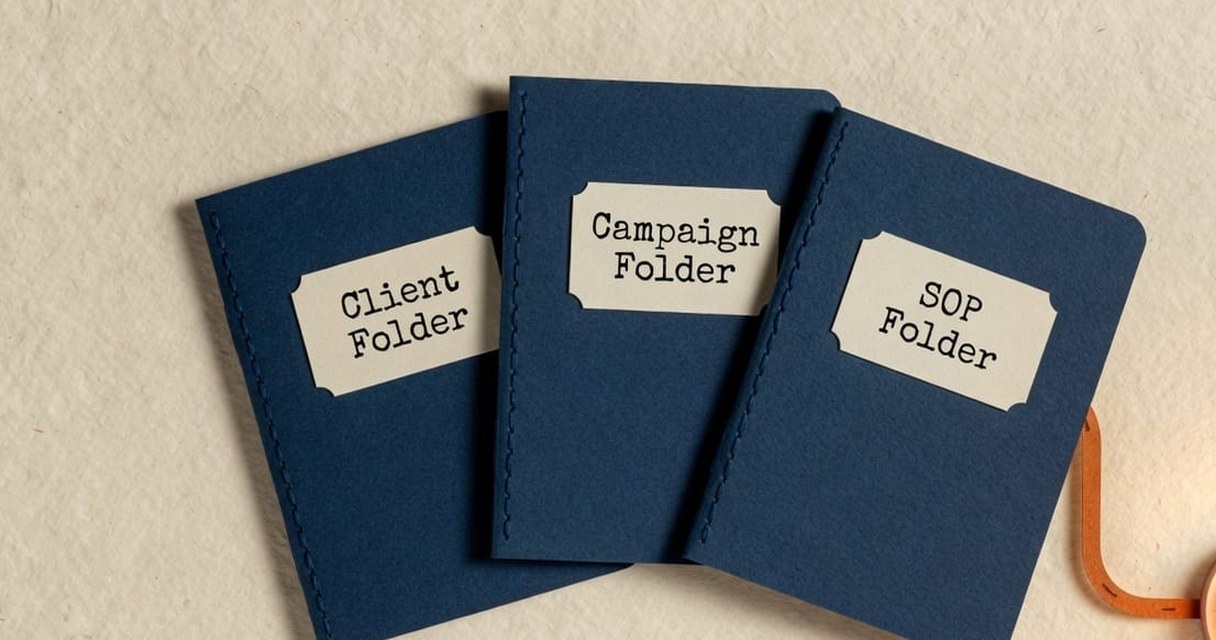
Three project brains to build this week
- 01
Client project brain
SOW, kickoff notes, research, brand guidelines, and every weekly or monthly report.
- 02
Campaign brain
Creative brief, media plan, past campaign performance, and competitor research.
- 03
Internal SOP brain
Process documents, tool guides, and the onboarding checklist, so new hires stop pinging senior staff for answers that are already written down.
Setting this up takes half an hour. Getting a whole team to actually use it — instead of defaulting back to “just ask in Slack” — is the part that takes real change management, which is where most AI rollouts quietly stall. We’ve trained more than 5,000 people across APAC since 2017 on exactly this kind of practical AI adoption, with a 98% satisfaction rate, and seen it work at scale: in one 4,000-person rollout we ran, 72% were using AI weekly within 30 days. If you want help building this out properly across a team, our AI consulting work is built for that, and AI training is worth a look if the gap is adoption rather than setup. And if you’re still deciding what to spend money on, our AI tool pricing guide for the Philippines breaks down what NotebookLM and its alternatives actually cost, in pesos and US dollars, before you commit.
Keep going: the AI guides hub has the rest of the tools series, and the Insights archive carries everything else the team publishes.
FAQ
Common questions
How many documents can I load into a NotebookLM project brain?
Up to 50 sources on the free tier, 100 on Plus, 300 on Pro, and 500–600 on Ultra, with each individual source capped at 500,000 words or 200MB regardless of plan.
Is NotebookLM free to use for this?
Yes — the free tier is enough for one small project. Move to a paid tier (bundled with Google AI Plus, Pro or Ultra) once you’re running several project brains at once or need more sources per notebook. Current peso figures live on our AI tool pricing guide — they can shift, so treat the numbers in this piece as the snapshot they are.
Does NotebookLM ever make things up?
Rarely, compared with an ungrounded chatbot, because it is built to answer from your sources and cite them. Still check the passage. Stale or conflicting documents produce stale or conflicting answers — a citation is not a guarantee the source was right.
Can my whole team access the same project brain?
Yes. Add teammates as Viewers or Editors by email, or share a link on a personal account (Workspace and Education sharing is restricted to your own domain). Viewers can ask questions and explore Audio Overviews and reports, but can’t edit the source material.
Should I use NotebookLM or Claude Projects for this?
Use NotebookLM when you want cited answers from a defined set of project documents. Move to Claude Projects once you need to reason beyond those documents — building a plan, comparing options, or drafting a recommendation. The Claude version of this build is the 45-minute Campaign Brain.
Keep reading
Related reading
Done-for-you
Want the brain built, or the team using it?
Setup is half an hour. Getting a whole team to actually use it instead of asking in Slack is the part that stalls. That’s AI consulting if you need the build done, and AI training if the gap is adoption.